Spoofing MAC Address Using Macchanger Tool: A Practical Guide
Changing (spoofing) a MAC address is a common technique in cybersecurity testing, especially during reconnaissance and wireless network assessments. On Kali Linux and similar distros, tools like macchanger make it quick and straightforward, as long as you’re operating ethically and with proper authorization.

Here’s a step-by-step MAC spoofing guide to help you get started.
What Is a MAC Address?
A MAC address (Media Access Control address) is a unique, 12-digit hexadecimal identifier hardcoded into a device’s Network Interface Card (NIC). It typically looks like: 00:1A:2B:3C:4D:5E.
MAC addresses help identify devices and manage communication within local networks.
Why Spoof a MAC Address?
In legitimate, authorized security testing, MAC address spoofing can help simulate real-world attack scenarios, such as:
- Bypassing MAC filters on Wi-Fi networks
- Resetting per-device usage limits in captive portals
- Anonymizing a device during testing
- Evading tracking on monitored networks
- Impersonating a known device in lab setups (with permission)
It is also a basic step in many penetration testing workflows, especially when operating anonymously on a target network.
Prerequisites
Before you begin, make sure:
- You’re using a Linux distro (Kali, Parrot, Ubuntu, etc.).
- You have sudo privileges.
- Your network adapter supports MAC address changes.
- You’re working in a legal and authorized environment.
- You are offline/disconnected from the network when changing your MAC.
Step-by-Step: How to Spoof MAC Address Using macchanger
Step 1: Install macchanger
If not already installed:
| sudo apt update && sudo apt install macchanger |
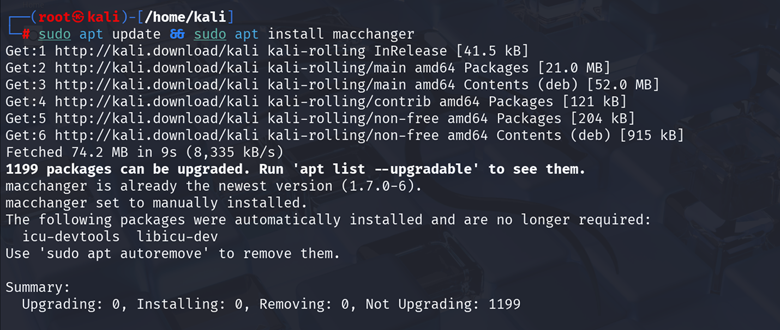
Verify the installation:
| macchanger –version |
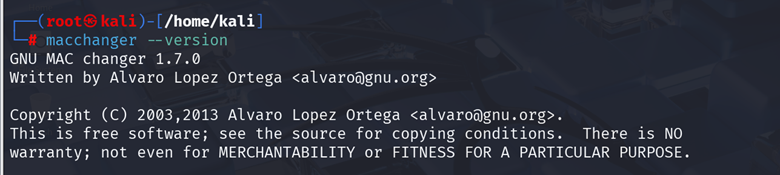
Once you’ve installed macchanger and ensured you have the right permissions, here’s how to safely and effectively spoof a MAC address using the tool. This walkthrough uses a common wired interface (e.g., eth0), but the same applies to wireless interfaces (e.g., wlan0).
Step 2: Identify Your Network Interface
List all interfaces:
| ip link show |

Or for more concise output:
| ip a |
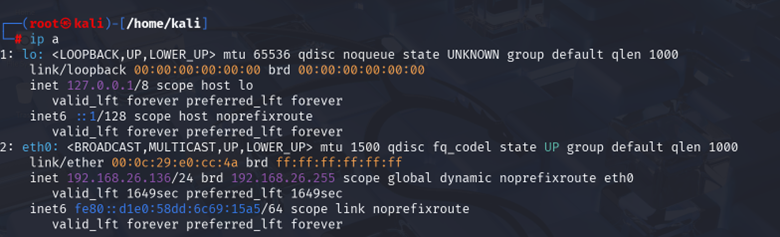
Common interface names:
Typical wireless interfaces: wlan0, wlan1
Typical wired interfaces: eth0, eth1
Tip: Write down your original MAC address in case you want to revert to it later.
Step 3: Disable the Interface
You can’t change a MAC while the interface is up. Before changing your MAC address, you need to disable the interface.
| sudo ip link set eth0 down |
(Substitute eth0 with your interface name.)

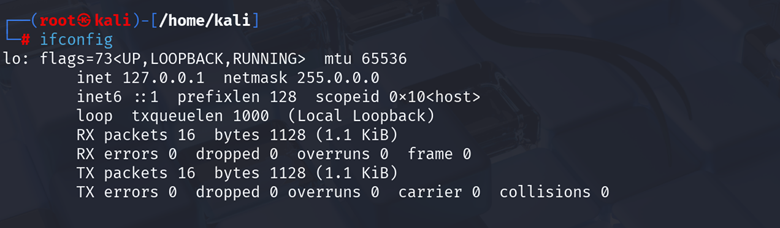
This is important because most systems won’t allow MAC changes while the interface is active.
Step 4: Show Current MAC Address
Before changing anything, check the current MAC:
| macchanger -s eth0 |

This shows:
- Current MAC
- Permanent MAC
Step 5: Change the MAC Address
Now, use macchanger to change the MAC. You’ve got a few options:
➤ To Assign a Random MAC Address:
| sudo macchanger -r eth0 |
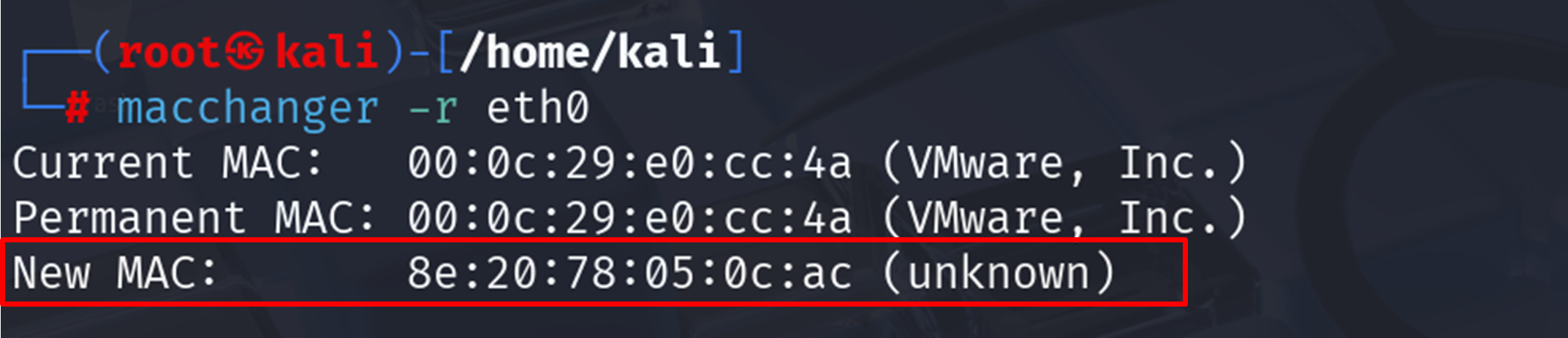
This generates a random MAC with a valid vendor prefix. It’s useful when you just want a new identity for privacy or testing.
➤ To Assign a Custom MAC Address:
| sudo macchanger -m 8a:39:89:07:0d:ad eth0 |
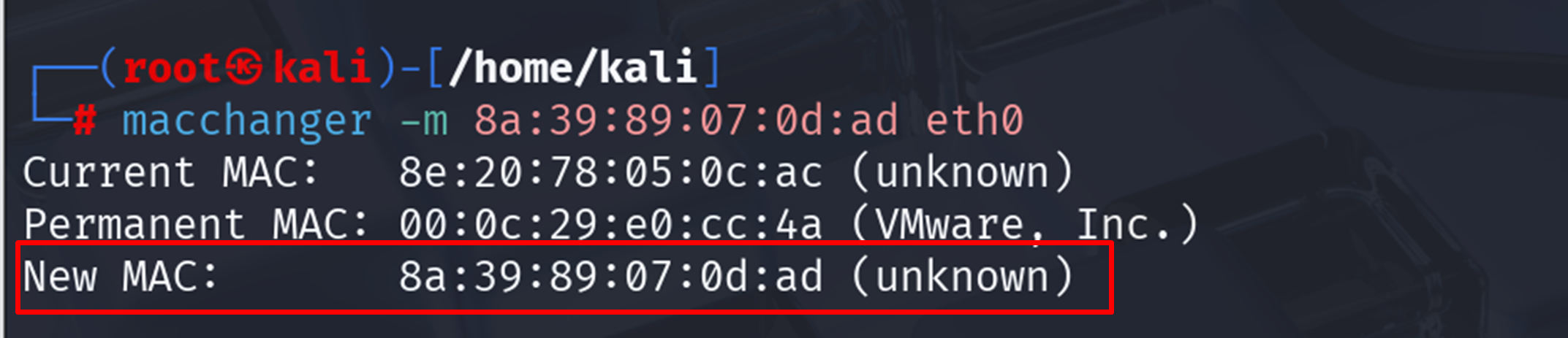
Replace 8a:39:89:07:0d:ad with your target MAC. Useful for simulating known devices or bypassing whitelist rules.
➤ To Revert to the Original MAC Address:
| sudo macchanger -p eth0 |

This resets the MAC to its permanent hardware address—great for undoing any changes after testing.
Step 6: Re-enable the Interface
Once the change is made, re-enable the interface so you can connect again:
| sudo ifconfig eth0 up |

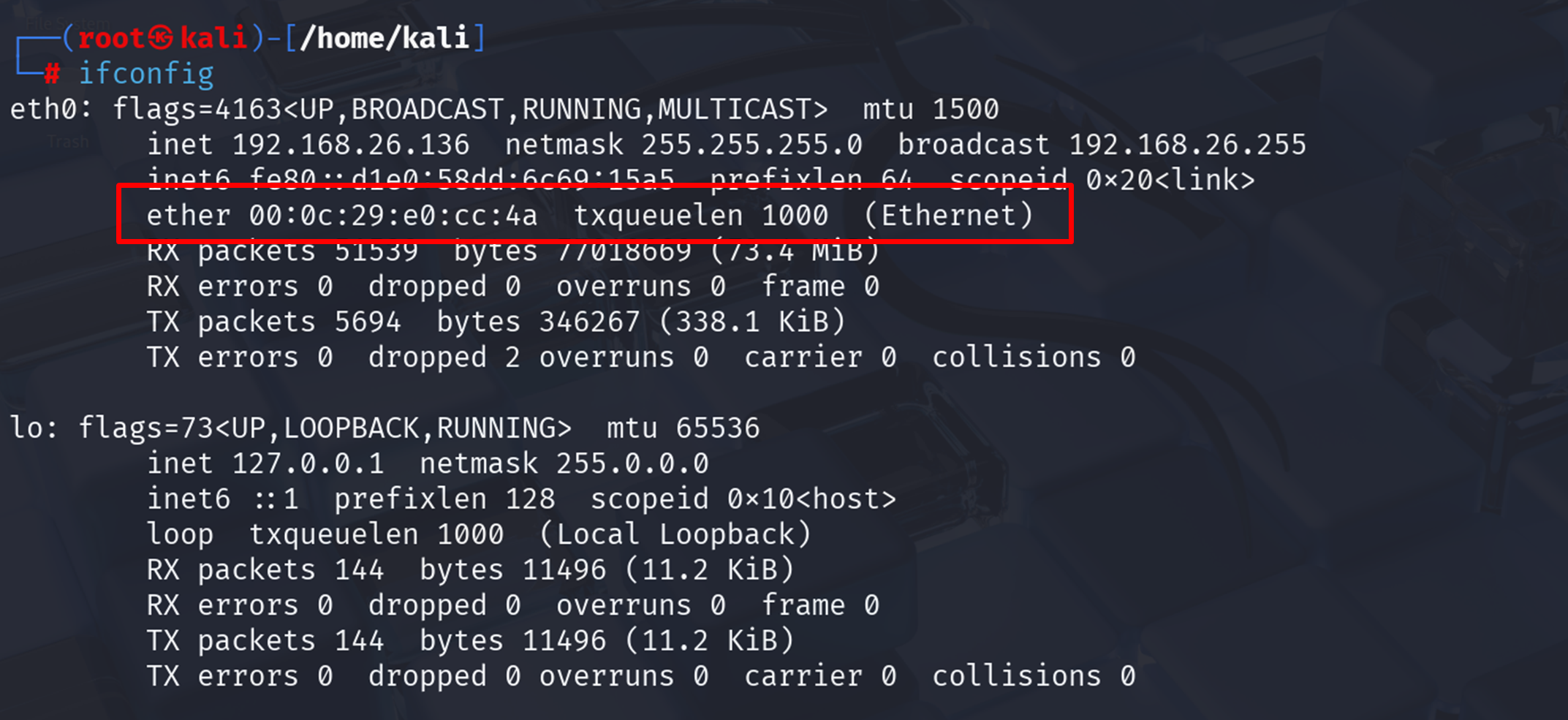
Step 7: Verify the Change
Verify that the spoof was successful:
| macchanger -s eth0 |
You’ll see output:

This shows your spoofed MAC (Current MAC) and your device’s original (Permanent MAC). If they differ, your spoof was successful.
Final Tip: Make It Persistent
By default, changes made with macchanger are temporary, they reset on reboot. If you want your spoofed MAC to persist after restart (for certain use cases), you’ll need to:
- Add macchanger commands to a startup script
- Or use a network manager that supports MAC randomization
Best Practices
- Use temporary MAC spoofing for testing; it reverts after a reboot unless automated.
- Don’t spoof the same MAC as another device on the network — it may cause conflicts.
- Automate at boot only if necessary. You can add macchanger commands to /etc/network/interfaces or use systemd services/scripts.
- Log MAC address changes in a testing notebook or a tool like CherryTree to keep track of your experiments, troubleshoot issues, and maintain a clear audit trail.
Disclaimer:
This post is for educational purposes only. Always get explicit, written permission before performing any kind of security testing, including MAC address spoofing. Unauthorized spoofing may violate laws or terms of service.
Final Thoughts
MAC spoofing is a simple but powerful tactic in the Ethical Hacker’s toolkit. When used responsibly and legally, it helps simulate real-world scenarios and improve network security.
Tools like macchanger make it easy, but the ethics and legality of your actions always come first.
How InfosecTrain Can Help?
If you’re looking to go beyond basic tutorials and build real cybersecurity skills, InfosecTrain offers structured, hands-on training led by industry experts. Whether you’re preparing for certifications like CEH v13 AI, CompTIA Security+, and more, or want practical experience with tools like macchanger, Wireshark, or Metasploit, InfosecTrain delivers:
- Instructor-led courses with real-world lab scenarios
- Customized training plans for individuals and teams
- Certification-focused tracks with exam readiness support
- Access to virtual labs for safe, legal, and repeatable practice
- One-on-one mentoring to help clarify tricky concepts

With InfosecTrain, you don’t just learn theory; you train to operate like a pro.
Explore our courses and take the next step toward mastering ethical hacking.
TRAINING CALENDAR of Upcoming Batches For CEH v13 AI Training
| Start Date | End Date | Start - End Time | Batch Type | Training Mode | Batch Status | |
|---|---|---|---|---|---|---|
| 08-Aug-2026 | 26-Sep-2026 | 19:00 - 23:00 IST | Weekend | Online | [ Open ] | |
| 05-Sep-2026 | 11-Oct-2026 | 09:00 - 13:00 IST | Weekend | Online | [ Open ] |