CompTIA A+ & Network+ Training
Master's Certificate
You will get certificate by Infosectrain



Program Highlights
The CompTIA A+ & Network+ Combo Training course from InfosecTrain is a comprehensive program that combines the foundational IT skills with advanced networking expertise. This rigorous training provides essential knowledge and practical skills in IT support and network administration, making it a strong foundation for anyone pursuing a flexible and successful career in the IT field.
 48-Hour Live Instructor-led Training
  Comprehensive A+ & Network+ Curriculum
  Real-world IT Support and Networking Scenarios
  Hands-on Practical Exercises & Labs
  CompTIA Authorized Partner
  Post Training Support
  Career Guidance
  Expert Mentorship and Industry Insights
  Access to Recorded Sessions
Learning Schedule
- upcoming classes
- corporate training
- 1 on 1 training
Looking for a customized training?
REQUEST A BATCHWhy Choose Our Corporate Training Solution
- Upskill your team on the latest tech
- Highly customized solutions
- Free Training Needs Analysis
- Skill-specific training delivery
- Secure your organizations inside-out
Why Choose 1-on-1 Training
- Get personalized attention
- Customized content
- Learn at your dedicated hour
- Instant clarification of doubt
- Guaranteed to run
Can't Find a Suitable Schedule? Talk to Our Training Advisor!

This combo course has been specifically designed to provide you with a solid foundation in both IT support and networking. It empowers you with the essential skills to troubleshoot, maintain, and secure computer systems (A+) while also equipping you with in-depth networking knowledge for managing and optimizing network infrastructures (Network+). Starting from the basics of computer hardware and operating systems, the program progresses to cover networking concepts, protocols, and security fundamentals. By the end of this course, you’ll be well-prepared to handle diverse IT challenges and pursue certifications that open doors to various career opportunities.
CompTIA A+ Core 1 (220-1201) Domains
Domain 1: Mobile Devices (13%)
1.1 Given a scenario, monitor mobile device hardware and use appropriate replacement techniques.
- Battery
- Keyboard/keys
- Random-Access Memory (RAM)
- Hard Disk Drive (HDD)/Solid-State Drive (SSD)
- Wireless cards
- Physical privacy and security components
- Biometrics
- Near-field scanner features
- Wi-Fi antenna connector/placement
- Camera/webcam
- Microphone
1.2 Compare and contrast accessories and connectivity options for mobile devices.
- Connection methods
- Accessories
- Docking station
- Port replicator
- Trackpad/drawing pad/track points
1.3 Given a scenario, configure basic mobile device network connectivity and provide application support.
- Wireless/cellular data network (enable/disable)
- 3G/4G/5G
- Hotspot
- Wi-Fi
- Subscriber Identity Module (SIM)/eSIM
- Bluetooth
- Enable Bluetooth
- Enable pairing
- Find a device for pairing
- Enter the appropriate Personal Identification Number (PIN) code
- Test connectivity
- Location services
- Global Positioning System (GPS) services
- Cellular location services
- Mobile Device Management (MDM)
- Device configurations
- Policy enforcement
- Corporate applications
- Mobile device synchronization
- Recognizing data caps
- Calendar
- Contacts
- Business applications
Domain 2: Networking (23%)
2.1 Compare and contrast Transmission Control Protocol (TCP) and User Datagram Protocol (UDP) ports, protocols, and their purposes.
- Ports and protocols
- TCP vs. UDP
2.2 Explain wireless networking technologies.
- Frequencies
- Channels
- NFC
- Radio-Frequency Identification (RFID)
2.3 Summarize services provided by networked hosts.
- Server roles
- Internet appliances
Domain 3: Hardware (25%)
3.1 Compare and contrast display components and attributes.
- Types
- Liquid Crystal Display (LCD)
- In-Plane Switching (IPS)
- Twisted Nematic (TN)
- Vertical Alignment (VA)
- Organic Light-Emitting Diode (OLED)
- Mini Light-Emitting Diode (Mini-LED)
- Liquid Crystal Display (LCD)
- Touch screen/digitizer
- Inverter
- Attributes
- Pixel density
- Refresh rates
- Screen resolution
- Color gamut
3.2 Summarize basic cable types and their connectors, features, and purposes.
- Peripheral cables
- USB 2.0
- USB 3.0
- Serial
- Thunderbolt
- Video cables
- High-definition Multimedia Interface (HDMI)
- DisplayPort
- Digital Visual Interface (DVI)
- Video Graphics Array (VGA)
- USB-C
- Hard drive cables
- Serial Advanced Technology Attachment (SATA)
- External SATA (eSATA)
- Adapters
- Connector types
- Punchdown block
- MicroUSB
- MiniUSB
- USB-C
- Molex
- Lightning
- DB9 3.0 Hardware
3.3 Compare and contrast RAM characteristics.
- Form factors
- Small Outline Dual In-line Memory Module (SODIMM)
- Dual In-line Memory Module (DIMM)
- Double Data Rate (DDR) iterations
- Error-Correcting Code (ECC) vs. non-ECC RAM
- Channel configurations
3.4 Compare and contrast storage devices.
- Hard drives
- Spindle speeds
- Form factors
- 2.5-inch
- 3.5-inch
- Solid-state drives
- Communications interfaces
- Non-Volatile Memory express (NVMe)
- SATA
- Peripheral Component Interconnect express (PCIe)
- Serial Attached SCSI [Small Computer System Interface] (SAS)
- Form factors
- M.2
- mini-Serial Advanced Technology Attachment (mSATA)
- Communications interfaces
- Drive configurations
- Redundant Array of Independent Disks (RAID) 0, 1, 5, 6, 10
- Removable storage
- Flash drives
- Memory cards
- Optical drives
3.5 Given a scenario, install and configure motherboards, Central Processing Units (CPUs), and add-on cards.
- Motherboard form factors
- Advanced Technology Extended (ATX)
- microATX
- Information Technology eXtended (ITX)
- Motherboard connector types
- Peripheral Component Interconnect (PCI)
- PCIe
- Power connectors
- SATA
- eSATA
- Headers
- M.2
- Motherboard compatibility
- CPU socket types
- Advanced Micro Devices, Inc. (AMD)
- Intel
- Multisocket
- CPU socket types
- BIOS/Unified Extensible Firmware Interface (UEFI) settings
- Boot options
- USB permissions
- Trusted Platform Module (TPM) security features
- Fan considerations
- Secure Boot
- Boot password
- BIOS password
- Temperature monitoring
- Virtualization support
- Encryption
- TPM
- Hardware Security Module (HSM)
- CPU architecture
- x86/x64
- Advanced RISC [Reduced Instruction Set Computer] Machine (ARM)
- Core configurations
- Expansion cards
- Sound card
- Video card
- Capture card
- Cooling
- Fans
- Heat sink
- Thermal paste/pads
- Liquid
3.6 Given a scenario, install the appropriate power supply.
- Input 110–120 VAC vs. 220–240 VAC
- Output 3.3V vs. 5V vs. 12V
- 20+4 pin motherboard connector
- Redundant power supply
- Modular power supply
- Wattage rating
- Energy efficiency
3.7 Given a scenario, deploy and configure multifunction devices/printers and settings.
- Properly unbox device and consider set-up location
- Use appropriate drivers for a given operating system
- Printer Control Language (PCL) vs. postscript
- Firmware
- Device connectivity
- USB
- Ethernet
- Wireless
- Public/shared devices
- Printer share
- Print server
- Configuration settings
- Duplex
- Orientation
- Tray settings
- Quality
- Security
- User authentication
- Badging
- Audit logs
- Secured prints
- Network scan services
- SMB
- Cloud services
- Automatic Document Feeder (ADF)/flatbed scanner
3.8 Given a scenario, perform appropriate printer maintenance.
- Laser
- Maintenance: Replace toner, apply maintenance kit, caliate, and clean
- Inkjet
- Ink cartridge, printhead, roller, and feeder
- Maintenance: Clean printheads, replace cartridges, caliate, and clear jams
- Thermal
- Feed assembly
- Special thermal paper
- Maintenance: Replace paper, clean heating element, and remove deis
- Impact
- Multipart paper
- Maintenance: Replace ribbon, printhead, and paper
Domain 4: Virtualization and Cloud computing (11%)
4.1 Explain virtualization concepts.
- Purpose of virtual machines
- Sandbox
- Test development
- Application virtualization
- Legacy software/OS
- Cross-platform virtualization
- Requirements
- Security
- Network
- Storage
- Desktop virtualization
- Virtual Desktop Infrastructure (VDI)
- Containers
- Hypervisors
- Type 1
- Type 2
4.2 Summarize cloud computing concepts.
- Common cloud models
- Private cloud
- Public cloud
- Hyid cloud
- Community cloud
- Infrastructure as a Service (IaaS)
- Software as a Service (SaaS)
- Platform as a Service (PaaS)
- Cloud characteristics
- Shared resources vs. dedicated resources
- Metered utilization
- Ingress/egress
- Elasticity
- Availability
- File synchronization
- Multitenancy
Domain 5: Hardware and Network Troubleshooting (28%)
5.1 Given a scenario, troubleshoot motherboards, RAM, CPUs, and power.
- Common symptoms
- Power-On Self-Test (POST) beeps
- Proprietary crash screens
- Blank screen
- No power
- Sluggish performance
- Overheating
- Burning smell
- Random shutdown
- Application crashes
- Unusual noise
- Capacitor swelling
- Inaccurate system date/time
5.2 Given a scenario, troubleshoot drive and RAID issues.
- Common symptoms
- Light-Emitting Diode (LED) status indicators
- Grinding noises
- Clicking sounds
- Bootable device not found
- Data loss/corruption
- RAID failure
- Self-Monitoring and Reporting Technology (S.M.A.R.T.) failure
- Extended read/write times
- Low performance Input/Output Operations Per Second (IOPS)
- Missing drives in OS
- Array missing
- Audible alarms
5.3 Given a scenario, troubleshoot video, projector, and display issues.
- Common symptoms
- Incorrect input source
- Physical cabling issues
- Burnt-out bulb
- Fuzzy image
- Display burn-in
- Dead pixels
- Flashing screen
- Incorrect color display
- Audio issues
- Dim image
- Intermittent projector shutdown
- Sizing issues
- Distorted image
5.4 Given a scenario, troubleshoot common mobile device issues.
- Common symptoms
- Poor battery health
- Swollen battery
- oken screen
- Improper charging
- Poor/no connectivity
- Liquid damage
- Overheating
- Digitizer issues
- Physically damaged ports
- Malware
- Cursor drift/touch caliation
- Unable to install new applications
- Stylus does not work
- Degraded performance
5.5 Given a scenario, troubleshoot printer issues.
- Lines down the printed pages
- Garbled print
- Paper jams
- Faded prints
- Paper not feeding
- Multipage misfeed
- Multiple prints pending in queue
- Speckling on printed pages
- Double/echo images on the print
- Grinding noise
- Finishing issues
- Staple jams
- Hole punch
- Incorrect page orientation
- Tray not recognized
- Connectivity issues
- Frozen print queue
CompTIA A+ Core 2 (220-1202) Domains
Domain 1: Operating Systems (31%)
1.1 Identify basic features of Microsoft Windows editions
- Windows 10 editions
- Home
- Pro
- Pro for Workstations
- Enterprise
- Feature differences
- Domain access vs. workgroup
- Desktop styles/user interface
- Availability of Remote Desktop Protocol (RDP)
- Random-Access Memory (RAM) support limitations
- BitLocker
- gpedit.msc
- Upgrade paths
- In-place upgrade
1.2 Given a scenario, use the appropriate Microsoft command-line tool
- Navigation
- cd
- dir
- md
- rmdir
- Drive navigation inputs: M C: or D: or x:
- Command-line tools
- chkdsk
- format
- xcopy
- copy
- robocopy
- gpupdate
- gpresult
- shutdown
- sfc
- [command name] /?
- diskpart
- pathping
- winver
1.3 Given a scenario, use features and tools of the Microsoft Windows 10 operating system (OS)
- Task Manager
- Services
- Startup
- Performance
- Processes
- Users
- Microsoft Management Console (MMC) snap-in
- Event Viewer (eventvwr.msc)
- Disk Management (diskmgmt.msc)
- Task Scheduler (taskschd.msc)
- Device Manager (devmgmt.msc)
- Certificate Manager (certmgr.msc)
- Local Users and Groups (lusrmgr.msc)
- Performance Monitor (perfmon.msc)
- Group Policy Editor (gpedit.msc)
- Additional tools
- System Information (msinfo32.exe)
- Resource Monitor (resmon.exe)
- System Configuration (msconfig.exe)
- Disk Cleanup (cleanmgr.exe)
- Disk Defragment (dfrgui.exe)
- Registry Editor (regedit.exe)
1.4 Given a scenario, use the appropriate Microsoft Windows 10 Control Panel utility
- Internet options
- Devices and printers
- Programs and features
- Network and sharing center
- System
- Windows Defender Firewall
- Sound
- User accounts
- Device manager
- Indexing options
- Administrative tools
- File Explorer Options
- Show hidden files
- Hide extensions
- General options
- View options
- Power Options
- Hibernate
- Power plans
- Sleep/suspend
- Standby
- Choose what closing the lid does
- Turn on fast startup
- Universal Serial Bus (USB) selective suspend
- Ease of Access
1.5 Given a scenario, use the appropriate Windows settings
- Time and language
- Update and security
- Personalization
- Apps
- Privacy
- System
- Devices
- Network and Internet
- Gaming
- Accounts
1.6 Given a scenario, configure Microsoft Windows networking features on a client/desktop
- Workgroup vs. domain setup
- Shared resources
- Printers
- File servers
- Mapped drives
- Local OS firewall settings
- Application restrictions and exceptions
- Configuration
- File Explorer navigation – network paths
- Metered connections and limitations
1.7 Given a scenario, apply application installation and configuration concepts
- System requirements for applications
- 32-bit vs. 64-bit dependent application requirements
- Dedicated graphics card vs. integrated graphics card
- Video Random-Access Memory (VRAM) requirements
- RAM requirements
- Central Processing Unit (CPU) requirements
- External hardware tokens
- Storage requirements
- OS requirements for applications
- Application to OS compatibility
- 32-bit vs. 64-bit OS
- Distribution methods
- Physical media vs. downloadable
- ISO mountable
- Other considerations for new applications
- Impact to device
- Impact to network
- Impact to operation
- Impact to business
1.8 Explain common OS types and their purposes
- Workstation OSs
- Windows
- Linux
- macOS
- Chrome OS
- Cell phone/tablet OSs
- iPadOS
- iOS
- Android
- Various filesystem types
- New Technology File System (NTFS)
- File Allocation Table 32 (FAT32)
- Third extended filesystem (ext3)
- Fourth extended filesystem (ext4)
- Apple File System (APFS)
- Extensible File Allocation Table (exFAT)
- Vendor life-cycle limitations
- End-of-Life (EOL)
- Update limitations
- Compatibility concerns between OSs
1.9 Given a scenario, perform OS installations and upgrades in a diverse OS environment
- Boot methods
- USB
- Optical media
- Network
- Solid-state/flash drives
- Internet-based
- External/hot-swappable drive
- Internal hard drive (partition)
- Types of installations
- Upgrade
- Recovery partition
- Clean install
- Image deployment
- Repair installation
- Remote network installation
- Other considerations M Third-party drivers
- Partitioning
- GUID [globally unique identifier] Partition Table (GPT)
- Master Boot Record (M)
- Drive format
- Upgrade considerations
- Backup files and user preferences
- Application and driver support/backward compatibility
- Hardware compatibility
- Feature updates
- Product life cycle
1.10 Identify common features and tools of the macOS/desktop OS
- Installation and uninstallation of applications
- File types
- .dmg
- .pkg
- .app
- App Store
- Uninstallation process
- File types
- Apple ID and corporate restrictions
- Best practices
- Backups
- Antivirus
- Updates/patches
- System Preferences
- Displays
- Networks
- Printers
- Scanners
- Privacy
- Accessibility
- Time Machine
- Features
- Multiple desktops
- Mission Control
- Keychain
- Spotlight
- iCloud
- Gestures
- Finder
- Remote Disc
- Dock
- Disk Utility
- FileVault
- Terminal
- Force Quit
1.11 Identify common features and tools of the Linux client/desktop OS
- Common commands
- ls
- pwd
- mv
- cp
- rm
- chmod
- chown
- su/sudo
- apt-get
- yum
- ip
- df
- grep
- ps
- man
- top
- find
- dig
- cat
- nano
- Best practices
- Backups
- Antivirus
- Updates/patches
- Tools
- Shell/terminal
- Samba
Domain 2: Security (25%)
2.1 Summarize various security measures and their purposes
- Physical security
- Access control vestibule
- Badge reader
- Video surveillance
- Alarm systems
- Motion sensors
- Door locks
- Equipment locks
- Guards
- Bollards
- Fences
- Physical security for staff
- Key fobs
- Smart cards
- Keys
- Biometrics
- Retina scanner
- Fingerprint scanner
- Palmprint scanner
- Lighting
- Magnetometers
- Logical security
- Principle of least privilege
- Access Control Lists (ACLs)
- Hard token
- Soft token
- Short Message Service (SMS)
- Voice call
- Authenticator application
- Mobile Device Management (MDM)
- Active Directory
- Login script
- Domain
- Group Policy/updates
- Organizational units
- Home folder
- Folder redirection
- Security groups
2.3 Given a scenario, detect, remove, and prevent malware using the appropriate tools and methods
- Malware
- Trojan
- Rootkit
- Virus
- Spyware
- Ransomware
- Keylogger
- Boot sector virus
- Cryptominers
- Tools and methods
- Recovery mode
- Antivirus
- Anti-malware
- Software firewalls
- Anti-phishing training
- User education regarding common threats
- OS reinstallation
2.4 Explain common social-engineering attacks, threats, and vulnerabilities
- Social engineering
- Phishing
- Vishing
- Shoulder surfing
- Whaling
- Tailgating
- Impersonation
- Dumpster diving
- Evil twin
- Threats
- Distributed Denial of Service (DDoS)
- Denial of Service (DoS)
- Zero-day attack
- Spoofing
- On-path attack
- ute-force attack
- Dictionary attack
- Insider threat
- Structured Query Language (SQL) injection
- Cross-Site Scripting (XSS)
- Vulnerabilities
- Non-compliant systems
- Unpatched systems
- Unprotected systems (missing antivirus/missing firewall)
- EOL OSs
2.5 Given a scenario, manage and configure basic security settings in the Microsoft Windows OS
- Defender Antivirus
- Activate/deactivate
- Updated definitions
- Firewall
- Activate/deactivate
- Port security
- Application security
- Users and groups
- Local vs. Microsoft account
- Standard account
- Administrator
- Guest user
- Power user
- Login OS options
- Username and password
- Personal Identification Number (PIN)
- Fingerprint
- Facial recognition
- NTFS vs. share permissions
- File and folder attributes
- Inheritance
- Run as administrator vs. standard user
- User Account Control (UAC)
- BitLocker
- BitLocker To Go
- Encrypting File System (EFS)
2.6 Given a scenario, configure a workstation to meet best practices for security
- Password best practices
- Complexity requirements
- Length
- Character types
- Expiration requirements
- Basic Input/Output System (BIOS)/Unified Extensible Firmware Interface (UEFI) passwords
- Complexity requirements
- End-user best practices
- Use screensaver locks
- Log off when not in use
- Secure/protect critical hardware (e.g., laptops)
- Secure Personally Identifiable Information (PII) and passwords
- Account management
- Restrict user permissions
- Restrict login times
- Disable guest account
- Use failed attempts lockout
- Use timeout/screen lock
- Change default administrator’s user account/password
- Disable AutoRun
- Disable AutoPlay
2.7 Explain common methods for securing mobile and embedded devices
- Screen locks
- Facial recognition
- PIN codes
- Fingerprint
- Pattern
- Swipe
- Remote wipes
- Locator applications
- OS updates
- Remote backup applications
- Failed login attempts restrictions
- Antivirus/anti-malware
- Firewalls
- Policies and procedures
2.8 Given a scenario, use common data destruction and disposal methods
- Physical destruction
- Drilling
- Shredding
- Degaussing
- Incinerating
- Recycling or repurposing best practices
- Erasing/wiping
- Low-level formatting
- Standard formatting
- Outsourcing concepts
- Third-party vendor
- Certification of destruction/recycling
2.9 Given a scenario, install and configure owsers and relevant security settings
- owser download/installation
- Trusted sources
- Hashing
- Untrusted sources
- Trusted sources
- Extensions and plug-ins
- Trusted sources
- Untrusted sources
- Password managers
- Settings
- Pop-up blocker
- Clearing owsing data
- Clearing cache
- Private-owsing mode
- Sign-in/owser data synchronization
- Ad blockers
Domain 3: Software Troubleshooting (22%)
3.1 Given a scenario, troubleshoot common Windows OS problems
- Common symptoms
- Blue Screen Of Death (BSOD)
- Sluggish performance
- Boot problems
- Frequent shutdowns
- Services not starting
- Applications crashing
- Low memory warnings
- USB controller resource
- warnings
- System instability
- No OS found
- Slow profile load
- Time drift
- Common troubleshooting steps
- Reboot
- Restart services
- Uninstall/reinstall/update applications
- Add resources
- Verify requirements
- System file check
- Repair Windows
- Restore
- Reimage
- Roll back updates
- Rebuild Windows profiles
3.2 Given a scenario, troubleshoot common personal computer (PC) security issues
- Common symptoms
- Unable to access the network
- Desktop alerts
- False alerts regarding antivirus protection
- Altered system or personal files
- M Missing/renamed files
- Unwanted notifications within
- the OS
- OS update failures
- owser-related symptoms
- Random/frequent pop-ups
- Certificate warnings
- Redirection
3.3 Given a scenario, use best practice procedures for malware removal
- Investigate and verify malware symptoms
- Quarantine infected systems
- Disable System Restore in Windows
- Remediate infected systems
- Update anti-malware software
- Scanning and removal techniques (e.g., safe mode, preinstallation environment)
- Schedule scans and run updates
- Enable System Restore and create a restore point in Windows
- Educate the end user
3.4 Given a scenario, troubleshoot common mobile OS and application issues
- Common symptoms
- Application fails to launch
- Application fails to close/crashes
- Application fails to update
- Slow to respond
- OS fails to update
- Battery life issues
- Randomly reboots
- Connectivity issues
- Screen does not autorotate
3.5 Given a scenario, troubleshoot common mobile OS and application security issues
- Security concerns
- Android Package (APK) source
- Developer mode
- Root access/jaileak
- Bootleg/malicious application
- Application spoofing
- Common symptoms
- High network traffic
- Sluggish response time
- Data-usage limit notification
- Limited Internet connectivity
- No Internet connectivity
- High number of ads
- Fake security warnings
- Unexpected application behavior
- Leaked personal files/data
Domain 4: Operational Procedures (22%)
4.1 Given a scenario, implement best practices associated with documentation and support systems information management
- Ticketing systems
- User information
- Device information
- Description of problems
- Categories
- Severity
- Escalation levels
- Clear, concise written communication
- Problem description
- Progress notes
- Problem resolution
- Asset management
- Inventory lists
- Database system
- Asset tags and IDs
- Procurement life cycle
- Warranty and licensing
- Assigned users
- Types of documents
- Acceptable Use Policy (AUP)
- Network topology diagram
- Regulatory compliance requirements
- Splash screens
- Incident reports
- Standard operating procedures
- Procedures for custom installation of software package
- New-user setup checklist
- End-user termination checklist
- Knowledge base/articles
4.2 Explain basic change-management best practices
- Documented business processes
- Rollback plan
- Sandbox testing
- Responsible staff member
- Change management
- Request forms
- Purpose of the change
- Scope of the change
- Date and time of the change
- Affected systems/impact
- Risk analysis
- Risk level
- Change board approvals
- End-user acceptance
4.3 Given a scenario, implement workstation backup and recovery methods
- Backup and recovery
- Full
- Incremental
- Differential
- Synthetic
- Backup testing
- Frequency
- Backup rotation schemes
- On site vs. off site
- Grandfather-Father-Son (GFS)
- 3-2-1 backup rule
4.4 Given a scenario, use common safety procedures
- Electrostatic Discharge (ESD) straps
- ESD mats
- Equipment grounding
- Proper power handling
- Proper component handling and storage
- Antistatic bags
- Compliance with government regulations
- Personal safety
- Disconnect power before repairing PC
- Lifting techniques
- Electrical fire safety
- Safety goggles
- Air filtration mask
4.5 Summarize environmental impacts and local environmental controls
- Material Safety Data Sheet (MSDS)/documentation for handling and disposal
- Proper battery disposal
- Proper toner disposal
- Proper disposal of other devices and assets
- Temperature, humidity-level awareness, and proper ventilation
- Location/equipment placement
- Dust cleanup
- Compressed air/vacuums
- Power surges, under-voltage events, and power failures
- Battery backup
- Surge suppressor
4.6 Explain the importance of prohibited content/activity and privacy, licensing, and policy concepts
- Incident response
- Chain of custody
- Inform management/law enforcement as necessary
- Copy of drive (data integrity and preservation)
- Documentation of incident
- Licensing/Digital Rights Management (DRM)/End-User License Agreement (EULA)
- Valid licenses
- Non-expired licenses
- Personal use license vs. corporate use license
- Open-source license
- Regulated data
- Credit card transactions
- Personal government-issued information
- PII
- Healthcare data
- Data retention requirements
4.7 Given a scenario, use proper communication techniques and professionalism
- Professional appearance and attire
- Match the required attire of the given environment
- Formal
- Business casual
- Match the required attire of the given environment
- Use proper language and avoid jargon, acronyms, and slang, when applicable
- Maintain a positive attitude/project confidence
- Actively listen, take notes, and avoid interrupting the customer
- Be culturally sensitive
- Use appropriate professional titles, when applicable
- Be on time (if late, contact the customer)
- Avoid distractions
- Personal calls
- Texting/social media sites
- Personal interruptions
- Dealing with difficult customers or situations
- Do not argue with customers or be defensive
- Avoid dismissing customer problems
- Avoid being judgmental
- Clarify customer statements
- Do not disclose experience via social media outlets
- Set and meet expectations/time line and communicate status with the customer
- Offer repair/replacement options, as needed
- Provide proper documentation on the services provided
- Follow up with customer/user at a later date to verify satisfaction
- Deal appropriately with customers’ confidential and private materials
- Located on a computer, desktop, printer, etc.
4.8 Identify the basics of scripting
- Script file types
- .bat
- .ps1
- .vbs
- .sh
- .js
- .py
- Use cases for scripting
- Basic automation
- Restarting machines
- Remapping network drives
- Installation of applications
- Automated backups
- Gathering of information/data
- Initiating updates
- Other considerations when using scripts
- Unintentionally introducing malware
- Inadvertently changing system settings
- owser or system crashes due to mishandling of resources
CompTIA Network+ Course Curriculum
Domain 1: Networking Concepts (23%)
1.1 Explain concepts related to the Open Systems Interconnection (OSI) reference model
- Layer 1 – Physical
- Layer 2 – Data link
- Layer 3 – Network
- Layer 4 – Transport
- Layer 5 – Session
- Layer 6 – Presentation
- Layer 7 – Application
1.2 Compare and contrast networking appliances, applications, and functions
- Physical and virtual appliances
- Router
- Switch
- Firewall
- Intrusion Detection System (IDS)/ Intrusion Prevention System (IPS)
- Load balancer
- Proxy
- Network-Attached Storage (NAS)
- Storage Area Network (SAN)
- Wireless
- Access Point (AP)
- Controller
- Applications
- Content Delivery Network (CDN)
- Functions
- Virtual Private Network (VPN)
- Quality of Service (QoS)
- Time to Live (TTL)
1.3 Summarize cloud concepts and connectivity options
- Network Functions Virtualization (NFV)
- Virtual Private Cloud (VPC)
- Network security groups
- Network security lists
- Cloud gateways
- Cloud connectivity options
- Scalability
- Elasticity
- Multitenancy
1.4 Explain common networking ports, protocols, services, and traffic types
- Protocols
- File Transfer Protocol (FTP)
- Secure File Transfer Protocol (SFTP)
- Secure Shell (SSH)
- Telnet
- Simple Mail Transfer Protocol (SMTP)
- Domain Name System (DNS)
- Dynamic Host Configuration Protocol (DHCP)
- Trivial File Transfer Protocol (TFTP)
- Hypertext Transfer Protocol (HTTP)
- Network Time Protocol (NTP)
- Simple Network Management Protocol (SNMP)
- Lightweight Directory Access Protocol (LDAP)
- Hypertext Transfer Protocol Secure (HTTPS)
- Server Message Block (SMB)
- Syslog
- Simple Mail Transfer Protocol Secure (SMTPS)
- Lightweight Directory Access Protocol over SSL (LDAPS)
- Structured Query Language (SQL) Server
- Remote Desktop Protocol (RDP)
- Session Initiation Protocol (SIP)
- Internet Protocol (IP) types
- Internet Control Message Protocol (ICMP)
- Transmission Control Protocol (TCP)
- User Datagram Protocol (UDP)
- Generic Routing Encapsulation (GRE)
- Internet Protocol Security (IPSec)
- Authentication Header (AH)
- Encapsulating Security Payload (ESP)
- Internet Key Exchange (IKE)
- Traffic types
- Unicast
- Multicast
- Anycast
- oadcast
1.5 Compare and contrast transmission media and transceivers
- Wireless
- 802.11 standards
- Cellular
- Satellite
- Wired
- 802.3 standards
- Single-mode vs. multimode fiber
- Direct Attach Copper (DAC) cable
- Twinaxial cable
- Coaxial cable
- Cable speeds
- Plenum vs. non-plenum cable
- Transceivers
- Protocol
- Ethernet
- Fie Channel (FC)
- Form factors
- Small Form-factor Pluggable (SFP)
- Quad Small Form-factor Pluggable (QSFP)
- Protocol
- Connector types
- Subscriber Connector (SC)
- Local Connector (LC)
- Straight Tip (ST)
- Multi-fiber Push On (MPO)
- Registered Jack (RJ)11
- RJ45
- F-type
- Bayonet Neill Concelman (BNC)
1.6 Compare and contrast network topologies, architectures, and types
- Mesh
- Hyid
- Star/hub and spoke
- Spine and leaf
- Point to point
- Three-tier hierarchical model
- Core
- Distribution
- Access
- Collapsed core
- Traffic flows
- North-south
- East-west
1.7 Given a scenario, use appropriate IPv4 network addressing
- Public vs. private
- Automatic Private IP Addressing (APIPA)
- RFC1918
- Loopback/localhost
- Subnetting
- Variable Length Subnet Mask (VLSM)
- Classless Inter-Domain Routing (CIDR)
- IPv4 address classes
- Class A, Class B, Class C, Class D, and Class E
1.8 Summarize evolving use cases for modern network environments
- Software-Defined Network (SDN) and Software-Defined Wide Area Network (SD-WAN)
- Application aware
- Zero-touch provisioning
- Transport agnostic
- Central policy management
- Virtual Extensible Local Area Network (VXLAN)
- Data Center Interconnect (DCI)
- Layer 2 encapsulation
- Zero Trust Architecture (ZTA)
- Policy-based authentication
- Least privilege access
- Secure Access Secure Edge (SASE)/ Security Service Edge (SSE)
- Infrastructure as Code (IaC)
- Automation
- Playbooks/templates/ reusable tasks
- Configuration drift/compliance
- Upgrades
- Dynamic inventories
- Source control
- Version control
- Central repository
- Conflict identification
- anching
- Automation
- IPv6 addressing
- Mitigating address exhaustion
- Compatibility requirements
- Tunneling
- Dual stack
- NAT64
Domain 2: Network Implementation (20%)
2.1 Explain characteristics of routing technologies
- Static routing
- Dynamic routing
- Border Gateway Protocol (BGP)
- Enhanced Interior Gateway Routing Protocol (EIGRP)
- Open Shortest Path First (OSPF)
- Route selection
- Administrative distance
- Prefix length
- Metric
- Address translation
- NAT
- Port Address Translation (PAT)
- First Hop Redundancy Protocol (FHRP)
- Virtual IP (VIP)
- Subinterfaces
2.2 Given a scenario, configure switching technologies and features
- Virtual Local Area Network (VLAN)
- VLAN database
- Switch Virtual Interface (SVI)
- Interface configuration
- Native VLAN
- Voice VLAN
- 802.1Q tagging
- Link aggregation
- Speed
- Duplex
- Spanning tree
- Maximum Transmission Unit (MTU)
- Jumbo frames
2.3 Given a scenario, select and configure wireless devices and technologies
- Channels
- Channel width
- Non-overlapping channels
- Regulatory impacts (802.11h)
- Frequency options
- 2.4GHz
- 5GHz
- 6GHz
- Band steering
- Service set identifier (SSID)
- Basic Service Set Identifier (BSSID)
- Extended Service Set Identifier (ESSID)
- Network types
- Encryption
- Wi-Fi Protected Access 2 (WPA2)
- WPA3
- Guest networks
- Captive portals
- Authentication
- Pre-Shared Key (PSK) vs. Enterprise
- Antennas
- Omnidirectional vs. directional
- Autonomous vs. lightweight access point
2.4 Explain important factors of physical installations
- Important installation implications
- Locations
- Intermediate Distribution Frame (IDF)
- Main Distribution Frame (MDF)
- Rack size
- Port-side exhaust/intake
- Cabling
- Patch panel
- Fiber distribution panel
- Lockable
- Locations
- Power
- Environmental factors
Domain 3: Network Operations (19%)
3.1 Explain the purpose of organizational processes and procedures
- Documentation
-
-
- Physical vs. logical diagrams
- Rack diagrams
- Cable maps and diagrams
- Network diagrams
- IP Address Management (IPAM)
- Service-Level Agreement (SLA)
- Wireless survey/heat map
-
- Life-cycle management
-
-
- End-of-Life (EOL)
- End-of-Support (EOS)
- Software management
- Decommissioning
-
- Configuration management
-
- Production configuration
- Backup configuration
- Baseline/golden configuration
3.2 Given a scenario, use network monitoring technologies.
- Methods
- SNMP
- Traps
- Management Information Base (MIB)
- Versions ‣ v2c ‣ v3
- Community strings
- Authentication
- Traps
- Flow data
- Packet capture
- Baseline metrics
- Anomaly alerting/notification
- Log aggregation
- Syslog collector
- Security Information and Event Management (SIEM)
- Application Programming Interface (API) integration
- Port mirroring
- SNMP
- Solutions
- Network discovery
- Ad-hoc
- Scheduled
- Traffic analysis
- Performance monitoring
- Availability monitoring
- Configuration monitoring
- Network discovery
3.3 Explain Disaster Recovery (DR) concepts
- DR metrics
- Recovery Point Objective (RPO)
- Recovery Time Objective (RTO)
- Mean Time to Repair (MTTR)
- Mean Time Between Failures (MTBF)
- DR sites
- Cold site Warm site Hot site
- High-availability approaches
- Active-active and Active-passive
- Testing
- Tabletop exercises
- Validation tests
3.4 Given a scenario, implement IPv4 and IPv6 network services
- Dynamic addressing
- DHCP
- Reservations
- Scope
- Lease time
- Options
- Relay/IP helper
- Exclusions
- Stateless Address Autoconfiguration (SLAAC)
- DHCP
- Name resolution
- DNS
- Domain Name Security Extensions (DNSSEC)
- DNS over HTTPS (DoH) and DNS over TLS (DoT)
- Record types
- Address (A)
- AAAA
- Canonical name (CNAME)
- Mail Exchange (MX)
- Text (TXT)
- Nameserver (NS)
- Pointer (PTR)
- Zone types
- Forward
- Reverse
- Authoritative vs. non-authoritative
- Primary vs. secondary
- Recursive
- Hosts file
- DNS
- Time protocols
- NTP
- Precision Time Protocol (PTP)
- Network Time Security (NTS)
3.5 Compare and contrast network access and management methods
- Site-to-site VPN
- Client-to-site VPN
- Clientless
- Split tunnel vs. full tunnel
- Connection methods
- Jump box/host
- In-band vs. out-of-band management
Domain 4: Network Security (14%)
4.1 Explain the importance of basic network security concepts
- Logical security
- Encryption
- Data in transit and Data at rest
- Certificates
- Public Key Infrastructure (PKI)
- Self-signed
- Identity and Access Management (IAM)
- Authentication
- Multi-Factor Authentication (MFA)
- Single Sign-On (SSO)
- Remote Authentication Dialin User Service (RADIUS)
- Security Assertion Markup Language (SAML)
- Terminal Access Controller Access Control System Plus (TACACS+)
- Time-based authentication
- Authorization
- Least privilege
- Role-based access control
- Authentication
- Geofencing
- Encryption
- Deception technologies
- Honeypot and Honeynet
- Common security terminology
- Risk
- Vulnerability
- Exploit
- Threat
- Confidentiality, Integrity, and Availability (CIA) triad
- Audits and regulatory compliance
- Data locality
- Payment Card Industry Data Security Standards (PCI DSS)
- General Data Protection Regulation (GDPR)
- Network segmentation enforcement
- Internet of Things (IoT) and Industrial Internet of Things (IIoT)
- Supervisory Control and Data Acquisition (SCADA), industrial control System (ICS), Operational Technology (OT)
- Guest
- ing Your Own Device (BYOD)
4.2 Summarize various types of attacks and their impact to the network
- VLAN hopping
- Media Access Control (MAC) flooding
- Address Resolution Protocol (ARP) poisoning
- ARP spoofing
- DNS poisoning
- DNS spoofing
- Rogue devices and services
- DHCP
- AP
4.3 Given a scenario, apply network security features, defense techniques, and solutions
- Device hardening
- Disable unused ports and services
- Change default passwords
- Network Access Control (NAC)
- Port security
- 802.1X
- MAC filtering
- Key management
- Security rules
- Access Control List (ACL)
- Uniform Resource Locator (URL) filtering
- Content filtering
- Zones
- Trusted vs. untrusted
- Screened subnet
Domain 5: Network troubleshooting (24%)
5.1 Explain the troubleshooting methodology
- Identify the problem
- Gather information
- Question users
- Identify symptoms
- Determine if anything has changed
- Duplicate the problem, if possible
- Approach multiple problems individually
- Establish a theory of probable cause
- Question the obvious
- Consider multiple approaches
- Top-to-bottom/bottomto-top OSI model
- Divide and conquer
- Test the theory to determine the cause
- If theory is confirmed, determine next steps to resolve problem
- If theory is not confirmed, establish a new theory or escalate
- Establish a plan of action to resolve the problem and identify potential effects
- Implement the solution or escalate as necessary
- Verify full system functionality and implement preventive measures if applicable
- Document findings, actions, outcomes, and lessons learned throughout the process
5.2 Given a scenario, troubleshoot common cabling and physical interface issues
- Cable issues
- Incorrect cable
- Single mode vs. multimode
- Category 5/6/7/8
- Shielded Twisted Pair (STP) vs. Unshielded Twisted Pair (UTP)
- Signal degradation
- Crosstalk
- Interference
- Attenuation
- Improper termination
- Transmitter (TX)/Receiver (RX) transposed
- Incorrect cable
- Interface issues
- Increasing interface counters
- Cyclic Redundancy Check (CRC)
- Runts
- Giants
- Drops
- Port status
- Error disabled
- Administratively down
- Suspended
- Increasing interface counters
- Hardware issues
- Power over Ethernet (PoE)
- Power budget exceeded
- Incorrect standard
- Transceivers
- Mismatch
- Signal strength
- Power over Ethernet (PoE)
5.3 Given a scenario, troubleshoot common issues with network services
- Switching issues
- STP
- Network loops
- Root idge selection
- Port roles
- Port states
- Incorrect VLAN assignment
- ACLs
- STP
- Route selection
- Routing table
- Default routes
- Address pool exhaustion
- Incorrect default gateway
- Incorrect IP address
- Duplicate IP address
- Incorrect subnet mask
5.4 Given a scenario, troubleshoot common performance issues
- Congestion/contention
- Bottlenecking
- Bandwidth
- Throughput capacity
- Latency
- Packet loss
- Jitter
- Wireless
- Interference
- Channel overlap
- Signal degradation or loss
- Insufficient wireless coverage
- Client disassociation issues
- Roaming misconfiguration
- Interference
5.5 Given a scenario, use the appropriate tool or protocol to solve networking issues
- Software tools
- Protocol analyzer
- Command line
- ping
- traceroute/tracert
- nslookup
- tcpdump
- dig
- netstat
- ip/ifconfig/ipconfig
- arp
- Nmap
- Link Layer Discovery Protocol (LLDP)/Cisco Discovery Protocol (CDP)
- Speed tester
- Hardware tools
- Toner
- Cable tester
- Taps
- Wi-Fi analyzer
- Visual fault locator
- Basic networking device commands
- show mac-address-table
- show route
- show interface
- show config
- show arp
- show vlan
- show power
This course is ideal for:
- Aspiring IT Professionals
- Networking Enthusiasts
- Cybersecurity Beginners
- Current IT Technicians
- Network Engineers & Administrators
While there are no strict prerequisites to enroll in the course, the following recommendations will help you succeed in both certifications:
- Basic computer knowledge
- Stable internet connection for course participation.
- IT Support Experience (Recommended): 9-12 months in an IT support role.
| Certification Name | CompTIA A+ (V15) | CompTIA Network+ (V9) |
| Exam Code | CompTIA A+ 220-1201 (Core 1) and 220-1202 (Core 2) | N10-009 |
| Exam Format | Multiple-choice, drag and drop, and performance-based | Multiple-choice and performance-based |
| No. of Questions | 90 Questions | 90 Questions |
| Exam Duration | 90 Minutes | 90 Minutes |
| Passing Score | 220-1001: 675 (on a scale of 900)
220-1002: 700 (on a scale of 900) |
720 (on a scale of 100-900) |
| Language | English | English, German, Japanese, Portuguese, and Spanish |
By the end of this training program, participants will be able to:
- Understand and apply fundamental IT concepts, including hardware, operating systems, and security.
- Troubleshoot and resolve hardware and software issues in computer systems.
- Set up, maintain, and secure computer systems, ensuring proper configuration and performance.
- Manage and optimize network infrastructures, including Local Area Networks (LANs) and Wide Area Networks (WANs).
- Implement and troubleshoot network devices, cables, and protocols.
- Understand IP addressing, TCP/IP protocols, and network services.
- Configure and secure wireless networks and VPNs.
- Monitor, maintain, and optimize network performance for scalability and reliability.
- Apply cybersecurity principles to protect network infrastructures and data.
- Perform advanced troubleshooting of network issues and configurations.

How We Help You Succeed

Vision

Goal

Skill-Building

Mentoring

Direction

Support

Success
Your Trusted Instructors

10+ Years of Experience
Words Have Power

It was a very good experience with the team. The class was clear and understandable, and it benefited me in learning all the concepts and gaining valuable knowledge.

I loved the overall training! Trainer is very knowledgeable, had clear understanding of all the topics covered. Loved the way he pays attention to details.

I had a great experience with the team. The training advisor was very supportive, and the trainer explained the concepts clearly and effectively. The program was well-structured and has definitely enhanced my skills in AI. Thank you for a wonderful learning experience.

The class was really good. The instructor gave us confidence and delivered the content in an impactful and easy-to-understand manner.

The program helped me understand several areas I was unfamiliar with. The instructor was exceptionally skilled and confident in delivering content.
The program was well-structured and easy to follow. The instructor’s use of real-life AI examples made it easier to connect with and understand the concepts.
Success Speaks Volumes

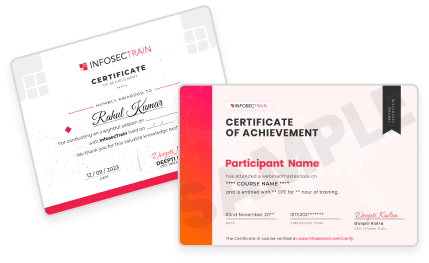
Get a Sample Certificate
Frequently Asked Questions
What is this CompTIA A+ and Network+ combo training course?
This course is a comprehensive training program that combines CompTIA A+ and CompTIA Network+ certifications. It provides essential IT support and networking skills, making it ideal for those who want to pursue a career in IT.
What will I learn in the CompTIA A+ and Network+ combo training course?
You will learn how to troubleshoot and maintain computer systems and how to manage and optimize network infrastructures. Topics include mobile devices, hardware, networking concepts, security, and more.
What are the prerequisites for this training course?
There are no strict prerequisites for the course. However, basic computer knowledge and some experience in IT support (9-12 months recommended) will help you succeed.
How long is the training course and what formats are available?
The course is 48 hours long, delivered via live instructor-led training. You can attend the sessions live, with access to recorded sessions for review.
Why choose combo training instead of individual courses?
The combo training provides a well-rounded foundation in IT support and networking, preparing you for two industry-recognized certifications. It saves time and money compared to enrolling in separate courses and ensures you gain comprehensive skills in both areas.
Will this training prepare me for the actual certification exams?
Yes, this training is specifically designed to prepare you for the CompTIA A+ and Network+ certification exams.
What kind of instructor support is provided?
You will receive expert guidance from experienced instructors throughout the course. Support includes live sessions, Q&A, and post-training support until you pass the certification exams.
What career opportunities can I pursue after completing this training?
After completing this training, you can pursue roles like IT Technician, Network Administrator, and Network Engineer, among others.