CyberChef Guide for SOC Analysts and Incident Response
Quick Insights:
CyberChef is a powerful browser-based cybersecurity toolkit that enables SOC analysts, incident responders, and threat hunters to decode, analyze, transform, and investigate data without writing code. With more than 300 built-in operations and complete client-side processing, it simplifies malware analysis, log investigation, data decoding, and threat analysis while keeping sensitive information secure.
What is CyberChef?
CyberChef is a web-based data analysis tool developed by the UK’s Government Communications Headquarters (GCHQ). CyberChef runs entirely client-side in your browser, with no installation required. You can access the latest version via the official web page (or even host it yourself), and all processing happens locally in your browser. No data you input is sent to any server. That means you can use CyberChef on an internet-isolated machine or secure network without fear of data leakage. It works on any modern device, your workstation, a colleague’s laptop, even a tablet in a pinch, since all you need is a web browser.
For extra security or convenience, you also have the option to download the CyberChef HTML file and run it offline; being open-source, it works the same on a local server or your hard drive, which is ideal for sensitive investigations where you don’t want even a hint of data leaving your environment.
Why CyberChef is Essential for SOC Analysts
1. Client-side Processing
- No data is sent to a server. Your sensitive files? Stay right on your machine.
- Perfect for offline use in air-gapped environments.
2. 300+ Built-in Operations
- Base64, XOR, AES, Gzip, Regex, ROT13, URL decode, hash functions, and more.
- You can chain these together for multi-step transformations.
3. No Code? No Problem.
- Drag, drop, decode.
- CyberChef makes complex operations simple and accessible to all skill levels.
How to Use CyberChef: Getting Started
Getting started with CyberChef is surprisingly straightforward. Just head over to https://gchq.github.io/CyberChef/ in your browser – no installation needed! You’ll see a user-friendly layout organized into several main sections:
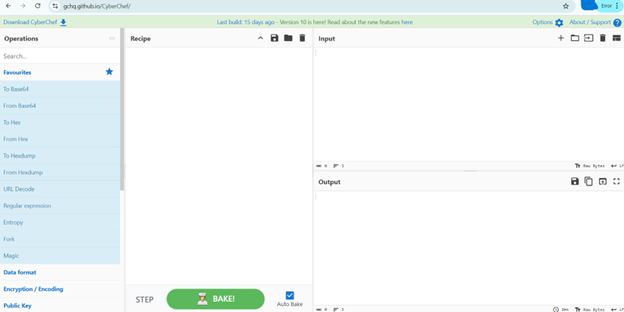
- Operations Pane (Left): This is where the magic happens. You’ll find a categorized list of hundreds of operations, from basic encoding/decoding to more advanced cryptographic functions and data analysis tools.
- Input Pane (Top Center): This is where you’ll paste or type the data you want to analyze. It could be a snippet of code, a log entry, a suspicious URL, or anything in between.
- Recipe Pane (Bottom Center): This is your workspace. You’ll drag and drop operations from the left pane into this area to build a sequence of actions – your “recipe” – to transform the input data.
- Output Pane (Right): Here’s where the results of your recipe will be displayed in real-time.
Practical Use Cases for CyberChef
CyberChef’s flexibility translates into countless use cases in cybersecurity. Here we highlight some of the most impactful ways SOC Analysts, Incident Responders, and Threat Hunters are leveraging CyberChef in their daily work:
Scenario 1: Filter Security Logs Using CyberChef
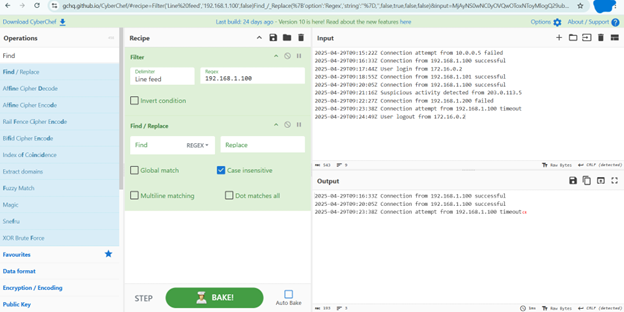
Let’s say you have a large log file and you want to find all entries related to a specific IP address, say 192.168.1.100.
- Input: Paste the entire log file content into the Input
- Find the Operation: Search for “Filter” in the Operations
- Build the Recipe: Drag the “Filter” operation to the Recipe
- Configure the Filter: In the Recipe pane, click on the “Filter” operation. You’ll see a configuration option. In the “Find” field, enter 168.1.100. You can also choose options like “Case sensitive” or “Regex” if needed.
- Output: The Output pane will now show only the log lines containing the specified IP address.
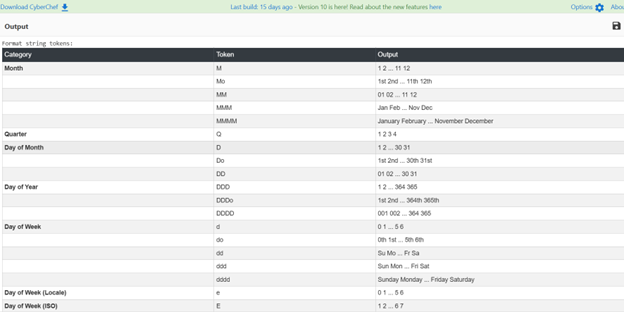
Scenario 2: Standardize Log Timestamps with CyberChef
Logs often have inconsistent timestamp formats, making correlation difficult. Let’s say you have a timestamp like 2025-04-20T12:00:00Z and another like 04/20/2025 12:00:00. You want to standardize them.
- Input: Paste a few log lines containing these different timestamp formats.
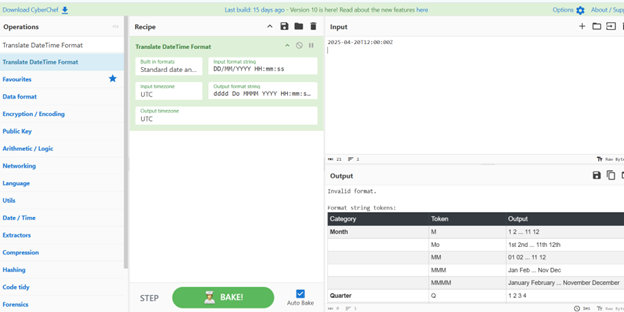
- Find the Operation: Search for “Translate DateTime Format”.
- Build the Recipe: Drag the “Translate DateTime Format” operation to the Recipe pane twice (once for each format).
Configure the Operations:
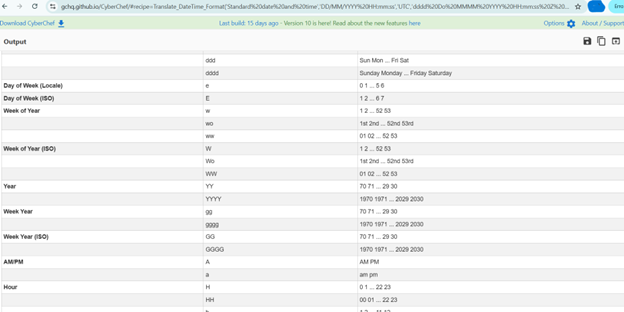
- For the first “Translate DateTime Format” operation, in the “Date format” field, enter YYYY-MM-DDTHH:mm:ssZ into the “Date format” field in the Input Pane. Choose your desired output format in the “Output format” field (e.g., YYYY-MM-DD HH:mm:ss).
- For the second “Translate DateTime Format” operation, in the “Date format” field, enter MM/DD/YYYY HH:mm:ss. Choose the same output format.
Output: The pane will show the timestamps converted to your chosen standardized format.
CyberChef for Malware Analysis
Malware often hides its true intentions through various encoding and obfuscation techniques. CyberChef can help you peel back those layers.
Scenario 3: Decoding a Base64 Encoded PowerShell Command
You’ve found a suspicious script, for example: cG93ZXJzaGVsbCAtZWNobyAnSGVsbG8gV29ybGQn, containing a long Base64 string. Let’s decode it.
- Input: Paste the Base64 encoded PowerShell command into the Input
- Find the Operation: Search for “From Base64”.
- Build the Recipe: Drag “From Base64” to the Recipe
- Further Analysis (Optional): The decoded output might still be obfuscated. You could then try other operations like “Replace” to remove specific characters or “Regular expression” to extract key parts.
- Output: powershell -echo ‘Hello World’
Scenario 4: XOR Decryption for Malware Configs
You have a snippet of data in hexadecimal format.
- Input: XOR-encoded string and key:
Encoded Text: 2b3c3a2c2e
Key: 0x20
Find the Operation: Use “From Hex.”
- Add “XOR” operation.
- Set key to 0x20
Build the Recipe: Drag “From Hexdump” to the Recipe
Output: The Output (SimpleConfig) pane will show the binary representation of the hex data, which you can then further analyze using other CyberChef operations depending on the file type or suspected content.
Scenario 5: Extract URLs from Security Logs
You pulled logs or strings from memory and need to extract all URLs.
Steps:
- Use “Extract URLs.”
- Optionally add “Defang URL” to safely display links.
Bonus: Combine with “Remove whitespace” to clean messy logs first.
Scenario 6: HTML Entity Decoding from Phishing Emails
The email contains encoded HTML meant to bypass filters.
Input: <script>alert(‘Phished’)</script>
Steps:
- Add “HTML Entity Decode.”
- Click “Bake.”
Output: <script>alert(‘Phished’)</script>
Now you see what the attacker wanted the browser to execute.
Scenario 7: Decompressing Gzip Files
You found a suspicious .gz file attached to an email.
Steps:
- Use “Gunzip” operation.
- Add “From Base64” if the data was base64 encoded.
Power Tips to Maximize CyberChef
- Use Magic: Not sure what encoding you’re dealing with? Try the “Magic” operation. It auto-detects common formats.
- Save Recipes: Click the “Save” icon to reuse your decoding workflows. Great for recurring investigations.
- Run Offline: Download CyberChef and run it from your desktop. Great for secure or isolated environments.
- F1 Help: Click on any operation and hit F1. Built-in help pops up for quick understanding.
- Share Recipes: You can generate URLs with pre-filled inputs and recipes to collaborate with your team.
SOC Analyst Hands-on Training with InfosecTrain
CyberChef isn’t just a cool tool; it’s a productivity powerhouse for modern SOCs. It replaces multiple point tools with a single browser-based interface and empowers even Junior Analysts to perform deep data analysis.
So whether you’re decoding a malicious PowerShell script, analyzing an email header, or just hunting for that sneaky C2 URL, CyberChef lets you do it faster, safer, and smarter.
Your data deserves a great chef. Fire up CyberChef and start baking.
Want to master tools like CyberChef in real-world SOC environments?
Enroll in InfosecTrain’s SOC Analyst Hands-on Training Course, designed to equip you with practical skills for threat detection, incident response, and data analysis.
Learn by doing. Solve real challenges. Become SOC-ready.

Frequently Asked Questions
What is CyberChef?
CyberChef is a browser-based data analysis and transformation tool developed by GCHQ that helps cybersecurity professionals decode, encode, analyze, and manipulate data without installing software.
Is CyberChef safe to use with sensitive data?
Yes. CyberChef processes data entirely within your web browser, so your input is not transmitted to external servers. It can also be run completely offline.
Who uses CyberChef?
CyberChef is widely used by SOC analysts, incident responders, malware analysts, digital forensics professionals, threat hunters, and penetration testers.
Can CyberChef analyze malware?
Yes. CyberChef supports common malware analysis tasks such as Base64 decoding, XOR decryption, Gzip decompression, URL extraction, HTML entity decoding, and data deobfuscation.
Does CyberChef require programming knowledge?
No. CyberChef provides a drag-and-drop interface that allows users to build analysis workflows without writing code.
Can CyberChef be used offline?
Yes. You can download CyberChef and run it locally, making it suitable for air-gapped environments and sensitive investigations.
What types of data can CyberChef process?
CyberChef can process text, logs, URLs, hashes, encoded strings, compressed files, binary data, certificates, JSON, XML, and many other data formats.
Why is CyberChef useful for SOC analysts?
CyberChef helps SOC analysts quickly decode suspicious artifacts, investigate logs, analyze malware, automate repetitive transformations, and accelerate incident response using a single browser-based interface.