
Program Highlights
In today’s fast paced digital workspace, efficiency is power. InfosecTrain’s Microsoft 365 Productivity Training empowers professionals to use everyday tools – Outlook, Teams, Word, Excel, PowerPoint, OneDrive, Forms, and OneNote – to their fullest potential.
Through live sessions, hands-on exercises, and real-world projects, participants learn how to communicate seamlessly, automate workflows, and manage data effectively. Whether you’re a student, freelancer, or corporate professional, this training helps you cut time-wasting tasks and boost your performance using Microsoft 365’s integrated ecosystem.
 08-Hour LIVE Instructor-led Training
  Hands-on Exercises
  Real-world Projects
  Capstone Productivity Challenge
  Templates & Cheat Sheets
  Certified Microsoft Experts
  Career Guidance & Mentorship
  Dedicated Telegram Support Group
  Access to Recorded Sessions
Training Schedule
- upcoming classes
- corporate training
- 1 on 1 training
Looking for a customized training?
REQUEST A BATCHWhy Choose Our Corporate Training Solution
- Upskill your team on the latest tech
- Highly customized solutions
- Free Training Needs Analysis
- Skill-specific training delivery
- Secure your organizations inside-out
Why Choose 1-on-1 Training
- Get personalized attention
- Customized content
- Learn at your dedicated hour
- Instant clarification of doubt
- Guaranteed to run


About Course
This Microsoft 365 Productivity Training is designed to help you master the tools that power modern workplaces. You’ll learn how to manage communication through Outlook & Teams, streamline workflows with Excel & Forms, create impactful documents and presentations using Word & PowerPoint, and collaborate effortlessly using OneDrive & OneNote.
The program focuses on practical, applied learning, you’ll not only understand the features but also implement them in everyday professional scenarios. By the end of this training, you’ll be able to design automated, integrated workflows that make your daily tasks faster, more organized, and more impactful.
Course Curriculum
- Module 1: Outlook & Microsoft Teams – Optimize Communication & Scheduling
- Learn to manage emails efficiently using folders, rules, and categories.
- Use shortcuts to save time.
- Schedule and track meetings in Outlook, color-code calendar events, integrate Teams for chat and video collaboration, and attach files to meetings.
- Automate reminders and tasks for better time management and quick access.
- Hands-On Exercise: Automate your inbox, schedule a week of meetings, and create a Teams channel for a small project.
- Module 2: OneDrive – Smart File Management
- Organize files and folders for quick access using consistent naming conventions.
- Use shared libraries for team collaboration and version history to prevent errors.
- Sync files offline for access on-the-go and use search filters for quick retrieval.
- Hands-On Exercise: Create a structured project folder with proper sharing permissions.
- Module 3: Word – Efficient Document Creation
- Create professional documents with headings, styles, and formatting.
- Use keyboard shortcuts for various purposes to save time.
- Collaborate in real-time using track changes and comments, and use voice dictation to draft content faster.
- Utilize templates to save time on reports, meeting notes, and proposals.
- Hands-On Exercise: Draft a collaborative project plan using Word templates and styles.
- Module 4: Excel – Data & Workflow Automation
- Analyze and visualize data with excel formulas, pivot tables, conditional formatting, and charts.
- Automate repetitive tasks using named ranges and macros.
- Link Forms or Teams data for real-time updates and build dashboards to track project progress.
- Hands-On Exercise: Create a project tracking spreadsheet with dashboards, highlighting key metrics and applying automation.
- Module 5: PowerPoint – Engaging Presentations
- Design professional presentations using templates, charts, visuals, themes, and multimedia.
- Collaborate with co-authoring and comments, add transitions, animations, and speaker notes for smoother delivery.
- Use Slide Master for consistent formatting and keep slides concise to maintain attention.
- Hands-On Exercise: Prepare a project summary presentation that visually communicates your data.
- Module 6: Microsoft Forms – Collect & Analyze Data
- Build surveys, quizzes, and feedback forms, and link responses directly to Excel for analysis.
- Use required fields, branching logic, and quiz scoring to collect accurate data.
- Automate notifications and export results for faster decision-making.
- Hands-On Exercise: Create a survey form, collect responses, and analyze them in Excel.
- Module 7: OneNote & Teams – Organize & Collaborate
- Capture notes, ideas, and tasks in OneNote using notebooks, sections, and pages.
- Learn to Color-code notes, use tags, and pin important items for easy access.
- Collaborate in Teams using chat, channels, and meetings. Integrate OneNote with Outlook and Teams for workflow efficiency.
- Hands-On Exercise: Track tasks in OneNote, communicate updates in Teams, and schedule a short meeting.
- Module 8: Capstone Project – Integrated Productivity Workflow
- Apply all Microsoft 365 tools in a real-world scenario. Choose one project:
- Team Event Planning – Organize an event, track tasks, collect RSVPs, and present a plan.
- Market Research – Conduct survey, analyze results in Excel, and present findings in PowerPoint.
- Internal Reporting – Collect feedback, track metrics, and deliver recommendations.
- Integrate tools for practical workflow: Outlook for scheduling, Teams for collaboration, OneNote for task tracking, Word for documentation, Excel dashboards, PowerPoint presentations, and Forms for data collection.
- Hands-On Exercise: Complete the full project with all deliverables, practicing tool integration and workflow efficiency.
- Apply all Microsoft 365 tools in a real-world scenario. Choose one project:
- Module 9: Wrap-Up & Quick Productivity Recap
- Review key productivity hacks, shortcuts, and best practices across Microsoft 365 tools.
- Reinforce lessons learned and demonstrate how to combine tools in quick workflows.
- Encourage creation of personal workflow templates to maintain efficiency and reference the cheat sheet daily.
- Hands-On Exercise: Quick recap exercises combining multiple tools to solidify learning.
Target Audience
This training is ideal for:
- Working professionals at all levels
- Students aiming to optimize productivity
- Freelancers, entrepreneurs, and anyone managing multiple projects
Pre-requisites
- Basic computer literacy
- Microsoft 365 account and internet access
Course Objectives
Upon successful completion of the training, participants will be able to:
- Optimize daily communication through Outlook, Teams, and OneDrive integration.
- Manage documents, presentations, and data efficiently using Word, PowerPoint, and Excel.
- Automate repetitive tasks and workflows to save time and reduce manual effort.
- Build collaborative team environments using shared tools and real-time co-authoring.
- Leverage Microsoft Forms and Excel for seamless data collection and analysis.
- Create professional documents and visually compelling reports that enhance business communication.
- Organize notes, projects, and meeting insights effectively using OneNote and Teams.
- Integrate multiple Microsoft 365 tools into one cohesive productivity workflow.
- Develop personalized templates and shortcuts to maintain long-term efficiency.


Vision

Goal

Skill-Building

Mentoring

Direction

Support

Success

It was a very good experience with the team. The class was clear and understandable, and it benefited me in learning all the concepts and gaining valuable knowledge.

I loved the overall training! Trainer is very knowledgeable, had clear understanding of all the topics covered. Loved the way he pays attention to details.

I had a great experience with the team. The training advisor was very supportive, and the trainer explained the concepts clearly and effectively. The program was well-structured and has definitely enhanced my skills in AI. Thank you for a wonderful learning experience.

The class was really good. The instructor gave us confidence and delivered the content in an impactful and easy-to-understand manner.

The program helped me understand several areas I was unfamiliar with. The instructor was exceptionally skilled and confident in delivering content.
The program was well-structured and easy to follow. The instructor’s use of real-life AI examples made it easier to connect with and understand the concepts.

Frequently Asked Questions
What is the Microsoft 365 Productivity Training Course at InfosecTrain?
It’s a live, instructor-led training that teaches participants how to maximize productivity using Microsoft 365 apps such as Outlook, Teams, Excel, PowerPoint, Word, OneDrive, Forms, and OneNote.
Which Microsoft 365 apps are covered in this course?
Outlook, Teams, Word, Excel, PowerPoint, OneDrive, Forms, and OneNote — with real-world projects that connect them into one seamless workflow.
Who should attend the Microsoft 365 Productivity Training Course?
Working professionals, students, freelancers, entrepreneurs, and anyone seeking to improve their productivity and collaboration skills.
Does the training include hands-on practice with Microsoft Teams, SharePoint, and OneDrive?
Yes, each module includes hands-on exercises and projects integrating Teams & OneDrive. SharePoint workflows are discussed for collaboration context.
What are the prerequisites for joining InfosecTrain’s Microsoft 365 course?
You just need basic computer literacy and an active Microsoft 365 account with internet access.
How long is the Microsoft 365 Productivity Training Course?
It’s an 08-hour live program, typically delivered in structured sessions over 2 days (4 hours each).
Will I receive a certificate after completing the training?
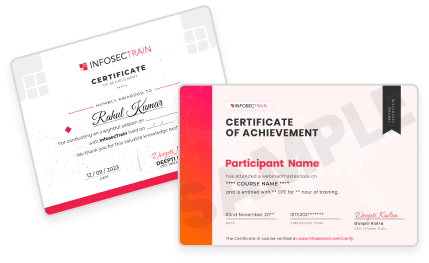
Yes, participants receive an InfosecTrain Certificate of Completion verifying their hands-on experience with Microsoft 365 tools.
Is this Microsoft 365 course suitable for corporate teams?
Absolutely! We provide customized corporate team packages with additional Q&A and productivity alignment sessions.
Can I take the Microsoft 365 Productivity Training Course online?
Yes, this is a 100% online live instructor-led training accessible from anywhere in the world.
How does this course improve workplace productivity and collaboration?
By teaching you how to automate repetitive tasks, centralize communication, analyze data quickly, and collaborate effectively using the full Microsoft 365 suite resulting in measurable productivity gains.